Smart Home Manager
- 4.4
- Rating
- 5.00M
- Installs
- Free
- Price

 Analysis by App-foxy
I spent time with Smart Home Manager as a practical Wi-Fi companion rather than treating it like another general productivity app. That distinction matters: this is a Productivity app from AT&T Services, Inc., but its usefulness depends on whether you are an AT&T Internet customer. If you are, it gives you a clearer way to personalize and supervise your home network from a phone. If you are not, there is little reason to keep it installed.
My overall impression is that the app is most valuable when it becomes part of a repeatable household routine. You can use it when a connection feels wrong, when a new device joins the home, or when you want to adjust the network without opening a laptop and searching through a router interface. It is free, carries an Everyone age rating, and has reached over five million installs with a 4.4 average from roughly eighty-five thousand ratings. Those figures suggest that it has found a real audience, although popularity does not remove the need to understand its limits.
How I used Smart Home Manager in everyday situations
I use Smart Home Manager most effectively when I tie it to ordinary moments—setting up a device, helping someone reconnect, or checking the network before troubleshooting. That gives me a useful starting point without turning routine Wi-Fi use into constant monitoring. From there, I can focus on the particular settings and habits that make those checks quicker and more consistent.
You May Also Like

 Blood Strike: 2.5 Anniversary
Blood Strike’s Loadouts Turn Every Drop Into a Tactical Gamble
A close look at Blood Strike’s custom loadouts: how fast access to signature weapons reshapes its battle royale rhythm, rewards preparation, and narrows the gap between fights.

 Pandora - Music & Podcasts
Pandora’s Music Is Easy to Start, but Harder to Recover
Pandora’s strength is its low-effort path from a seed to a station. Its weak spot is how much confidence it asks you to place in connection, setup, and quiet recovery.

 8 Ball Pool
 Is Built on Rivalries, Rematches, and Routine
A close look at the rivalries, rematches, shared routines, and unanswered safety questions that turn a quick pool match into a persistent mobile community.

 Samsung Music
’s Quiet Strength Is Playing What You Already Own
Its reach comes less from spectacle than from dependable access to a personal library. That simplicity is both the app’s strongest retention engine and its ceiling.

 AccuWeather: Weather Radar
AccuWeather Review: A Quick, Clear Forecast for Everyday Decisions
For everyday plans, the best forecast is the one you can understand quickly. AccuWeather makes rain timing, radar, and local conditions easy to act on, with a few trade-offs.

 Hill Climb Racing
Why Hill Climb Racing Still Turns Crashes Into One More Run
A tiny car, a bumpy hill and one more upgrade: Hill Climb Racing keeps resurfacing because its simple chaos makes every near-miss feel personal.
More From Our News Desk



A simple baseline for managing the home network
The easiest way to get value from the app is to start with a basic check rather than changing settings immediately. I would open it when the home network is behaving normally, look through the connected-device view, and learn how the household appears inside the app. That baseline makes later troubleshooting much less vague. Instead of saying “the Wi-Fi is slow,” I can first ask whether the issue affects every device or only one phone, television, console, or computer.
This is especially useful in a busy home. A connection problem may actually be a device-specific issue, a family member using a different part of the house, or an unfamiliar device that needs attention. Smart Home Manager gives the network a more approachable shape than the usual router administration page. I do not have to begin with technical terms or remember a gateway address just to understand what is happening.
My recommended first session is deliberately modest. Sign in with the AT&T Internet account, identify the equipment and devices you recognize, and note which controls are available for your particular setup. Then close the app and use the network normally. This prevents the common mistake of changing several things at once and losing track of which adjustment helped.
A realistic example is a family preparing for an evening video call. One person notices that a laptop is struggling while phones and a streaming device appear fine. I would use the app to inspect the network context before restarting everything. If the problem is isolated, the next step may be reconnecting or checking that laptop rather than disrupting the entire household. That small habit saves time and avoids blaming the internet connection for every local problem.
What the app is and what it is not
Smart Home Manager is not a replacement for every tool used by a network professional. I would not choose it for detailed traffic analysis, laboratory testing, or a complete set of advanced router controls. Its strength is the layer between “I have a problem” and “I want to configure networking equipment manually.” That middle ground is where most households spend their time.
The app also should not be confused with a general smart-home controller. The name can suggest lights, cameras, thermostats, and appliances, but the useful focus here is the AT&T Internet connection and its Wi-Fi environment. I found it easier to judge the app once I treated it as a network-management dashboard instead of an all-purpose home automation hub.
That focus is a benefit for many people. A household member who would never open a router’s browser settings can still understand the basic state of the home network through a mobile interface. The trade-off is that the app’s value is tied to the AT&T service relationship. A person using another internet provider should look to that provider’s own management app or to the router manufacturer’s software instead.
Settings worth checking before you rely on it
After learning the baseline, I would review the controls gradually. The most important question is not “what can I change?” but “which change solves a real problem in this home?” A useful network habit is to keep a short mental record of the normal arrangement: which devices are permanent, which are occasional, and which belong to guests or visitors.
Device organization is more important than it first appears. If several entries look unfamiliar, do not immediately assume that the network has been compromised. Phones, televisions, streaming equipment, printers, speakers, and household appliances may use names that are hard to recognize. I prefer identifying devices by matching them with what is physically switched on, then making only one decision at a time. This makes later checks much more reliable.
When the app offers a control that affects access or connectivity, I would use it with a clear purpose and explain the change to other people in the home. A temporary restriction can be useful, but an unexplained change can look like a broken connection. This is one reason I prefer repeatable routines: check the device, decide why the setting is changing, apply it, and verify the result from the affected device.
Another worthwhile check is the account and equipment context. Because the app is connected to AT&T Internet service, the experience depends on the account and the network hardware associated with it. If you manage internet service for more than one location or help a relative, take a moment to confirm that you are viewing the intended home before making adjustments. That is a simple precaution, but it matters more than hunting for obscure settings.
Faster patterns for recurring problems
The app becomes more convenient when I stop opening it randomly and instead attach it to familiar events. For example, I might check the connected-device view when a new device is installed, after guests leave, or when a family member reports that a connection suddenly stopped working. These triggers are easier to remember than a vague instruction to “monitor the Wi-Fi.”
A useful troubleshooting pattern is to separate diagnosis from repair. First, identify whether the problem is limited to one device or appears across the home. Next, check the app for the network context and the device involved. Only then should you restart equipment, alter a setting, or contact support. This order reduces unnecessary resets and gives you better information if the issue continues.
I also like using the app as a communication tool inside the household. If someone asks why a device is not connecting, I can discuss the device and network state instead of guessing. That is particularly helpful when one person manages the internet account but several people depend on it. The app does not eliminate household confusion by itself; the improvement comes from using the same sequence every time.
For repeat visitors, a consistent guest routine is sensible: check the current device list, recognize the visitor’s device, and review the network afterward. I would not treat this as a security ritual that guarantees perfect protection. It is simply a practical way to keep the home’s device list understandable and to notice something that deserves attention.
Shortcuts on the phone can help, but I would keep them simple. The fastest workflow is often just placing the app where it is easy to reach and opening it when a known trigger occurs. I would not build an elaborate routine around a feature unless the app clearly supports it on the specific device and account. Smart Home Manager is most dependable when used for the controls it visibly provides, not when expectations are built around imagined automation.
Where experienced users still meet limits
The biggest limitation is the boundary between a friendly management screen and deeper networking information. When a connection is inconsistent, I may still need other tools or a browser-based interface to investigate details that the mobile app does not present in the same way. Smart Home Manager can help me narrow the problem, but it is not necessarily the final diagnostic instrument.
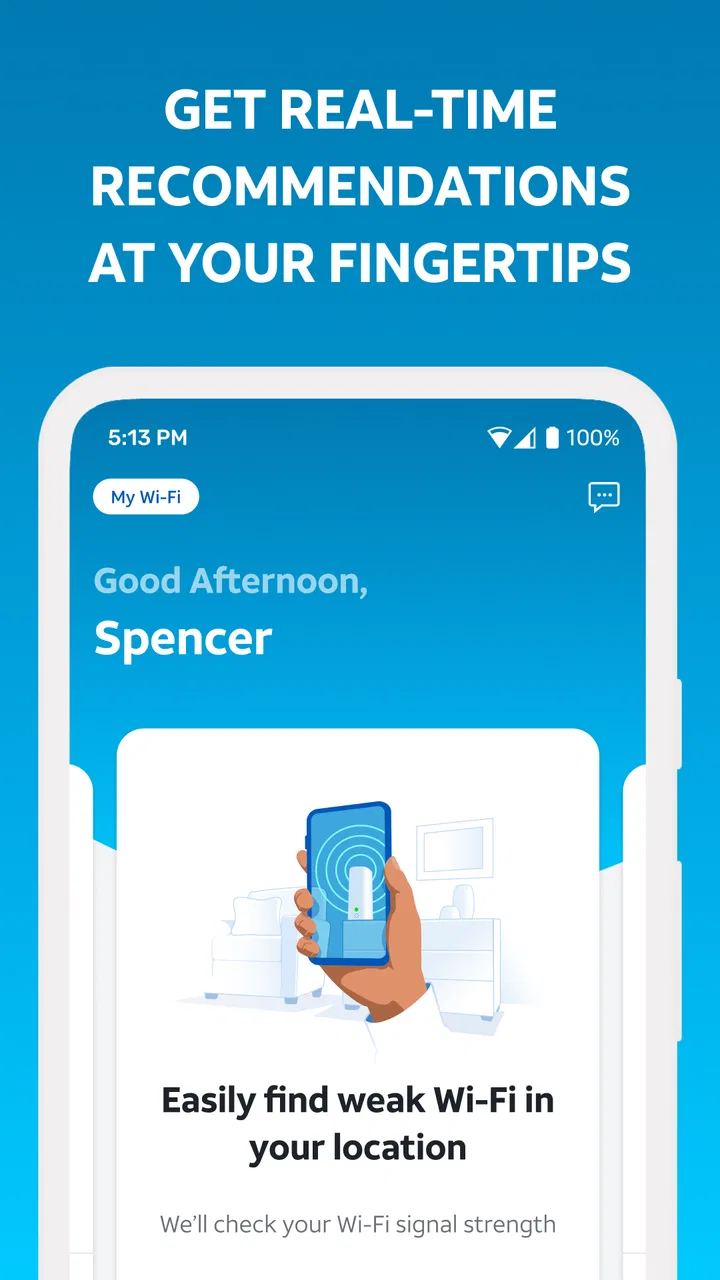
There is also a difference between managing Wi-Fi and improving Wi-Fi coverage. An app can make settings easier to understand, but it cannot physically move a router, remove walls, replace faulty cabling, or change the layout of a crowded home. If the signal is weak in one room, I would use the app to understand the situation, then consider placement, equipment, or service support rather than expecting a software adjustment to solve every coverage problem.
Another trade-off is convenience versus precision. A simplified control is easier for everyday use, but advanced users may want more granular choices, logs, and technical explanations. If you regularly tune channels, inspect detailed network behavior, or manage complex segmented networks, a dedicated router platform may suit you better. Smart Home Manager is not poor because it is simpler; it is simply aimed at a different level of control.
Account dependence is another important consideration. The app makes sense when your AT&T Internet account and home network are at the center of the task. If you change providers, use a separate networking system, or need one neutral dashboard for equipment from several brands, the usual alternatives may be more appropriate. In that situation, the app’s clean focus becomes a restriction rather than an advantage.
I would also avoid treating any mobile network dashboard as an automatic security guarantee. Seeing devices and adjusting access can improve awareness, but safe home networking still depends on sensible account habits, updated equipment, and careful decisions about what connects. The app is a useful part of that routine, not a substitute for all of it.
How it compares with the usual alternatives
The most obvious alternative is the router’s web interface. That option can expose more technical information and may be preferable for someone who already understands networking. However, it often feels intimidating on a phone, and the path to a basic device check can be unnecessarily long. Smart Home Manager wins when the goal is quick, understandable management of an AT&T home connection.
Another alternative is a router manufacturer’s companion app. Those apps may be better if your home uses equipment from that manufacturer and you want a unified view of its hardware. They can also be the better choice for people who want features tied closely to a particular mesh system. Smart Home Manager is more compelling when the AT&T service account is the natural place to begin and the household wants less technical friction.
General network-scanning utilities serve a different purpose. They can sometimes reveal technical details that a provider-focused app does not emphasize, but they may be harder for a family to interpret and may not offer the same account-connected controls. I would use one only when I had a specific diagnostic question, not as a replacement for the everyday workflow.
For a small home with one internet provider and several people who need occasional help, I prefer the focused approach. For a technically demanding home, a multi-provider setup, or someone who wants full control over networking behavior, I would compare alternatives before committing. The right choice depends less on the app’s rating than on how much control you actually need.
Who should use it and who should skip it
I would recommend Smart Home Manager to AT&T Internet customers who want a less intimidating way to understand their home Wi-Fi. It is a good fit for families, shared homes, and people who frequently help relatives troubleshoot devices. It is also useful for anyone who wants a repeatable phone-based check instead of relying on guesswork whenever a connection feels slow.
The app is especially worthwhile for users who do not want to memorize router addresses or learn a full technical vocabulary. Its value is not that every network problem disappears; its value is that the first steps become easier to see and repeat. That can turn a frustrating household interruption into a short inspection followed by a sensible decision.
I would skip it if you are not an AT&T Internet customer, if you need advanced diagnostics as your main goal, or if your existing router platform already gives you everything you need. I would also avoid installing it solely because the name sounds like a complete smart-home platform. The app is much more specific than that expectation suggests.
Compatibility, cost, and day-to-day practicality
Smart Home Manager is free and supports Android devices running version seven or later. Its current version is 2.2601.471, so I would check the app store on the phone before assuming that an older device or an outdated installation will behave exactly like a current one. The Everyone rating makes it suitable for a broad household audience, although younger users should still be guided when changing network access or account-related settings.
The release history reaches back to August 21, 2017, which helps explain why the app has had time to become familiar to a large number of users. It has around twenty-nine thousand written reviews, giving prospective users plenty of public feedback to compare with their own needs. I would still judge it by the specific AT&T setup in the home, because network equipment and account context can affect the practical experience.
In daily use, I would keep expectations realistic. Open it for a clear task, make the smallest useful change, and verify the result. That approach is faster and safer than exploring every control during a crisis. It also makes the app easier to hand over to another household member, because the process is based on recognizable situations rather than personal technical knowledge.
My verdict after building a repeatable routine
Smart Home Manager works best as a calm, accessible front door to AT&T home Wi-Fi management. I appreciate that it can make device awareness and basic network decisions feel less remote than a traditional router page. The strongest benefit is not a flashy feature; it is the ability to create a repeatable habit around checking the network, identifying the affected device, and choosing a measured response.
Its limits are just as clear. It is not a universal smart-home controller, not a complete replacement for advanced router tools, and not a magic answer to weak coverage or complicated network faults. Users who need detailed technical control should look elsewhere, while AT&T customers who want everyday clarity have a strong reason to try it.
My final recommendation is straightforward: install it if your AT&T Internet account is central to your home network and you want practical control from a phone. Start with the baseline device check, review settings only when you have a reason, and use the same troubleshooting sequence whenever problems return. The app is at its best when it turns Wi-Fi management into a small, repeatable household habit rather than an emergency guessing game.
FAQs for Smart Home Manager
01What is Smart Home Manager and what does it do?
Smart Home Manager is an application designed to help users manage and control their smart home devices seamlessly. It integrates various smart devices into a single platform, allowing users to monitor, control, and automate their home environment from one app, enhancing convenience and energy efficiency.
02Is Smart Home Manager compatible with all smart home devices?
Smart Home Manager supports a wide range of smart home devices, including lights, thermostats, cameras, and more. However, compatibility may vary, and it’s advisable to check the app’s compatibility list or your device’s specifications to ensure seamless integration with your existing smart home ecosystem.
03How secure is Smart Home Manager in protecting my data and privacy?
Smart Home Manager prioritizes user security and privacy by employing advanced encryption protocols and secure login methods. The app continuously updates its security features to protect user data from unauthorized access. Users are also encouraged to use strong passwords and enable two-factor authentication for added security.
04Can I control my smart home devices remotely with Smart Home Manager?
Yes, Smart Home Manager allows users to control their smart home devices remotely via the app. As long as you have an internet connection, you can manage devices from anywhere, providing flexibility and peace of mind. This feature is particularly useful for adjusting settings when away from home.
05Does Smart Home Manager offer customer support in case of technical issues?
Smart Home Manager provides robust customer support through various channels, including in-app help, online resources, and direct customer service. Users can access tutorials, FAQs, and troubleshooting guides. For more specific issues, contacting their support team directly is recommended for personalized assistance.
Pros
- User-friendly interface for easy navigation.
- Integrates well with various smart devices.
- Real-time alerts enhance security.
- Energy usage insights help save costs.
- Customizable automation routines.
Cons
- Limited compatibility with some brands.
- Occasional connectivity issues.
- Requires stable internet connection.
- Subscription needed for advanced features.
- Initial setup can be time-consuming.

Smart Home Manager
Gallery